

Key Highlights
- Follow proper DTF transfer file requirements for sharp, clean prints.
- Use the correct recommended dpi for DTF to avoid pixelation.
- PNG format is best for meeting DTF transfer png requirements.
- Correct DTF color profile settings improve color accuracy.
- High-quality files meet all DTF image quality requirements.
If your prints are coming out blurry, pixelated, or just not sharp enough, the issue often starts before printing even begins. It usually comes down to your file.
Understanding DTF transfer file requirements is one of the most important steps in getting clean, vibrant, and professional results. No matter how good your printer is, a poor file will always produce poor output.
In this guide, we’ll break everything down in a simple, human way so you can prepare perfect files every time.
Why File Setup Matters More Than You Think
Your design file is the foundation of your print. If it’s low quality, no machine can fix it later. A properly prepared file ensures better color, sharpness, and durability. That’s why professionals always follow strict DTF design file specs before printing. Ignoring these basics leads to faded prints, rough edges, and wasted material.
Why PNG Is the Preferred Format
When it comes to DTF file specs png, PNG is the most commonly used format. It supports transparency, maintains quality, and works perfectly with DTF printers. This is why most print providers require files that meet DTF transfer png requirements. Unlike JPG, PNG does not compress the image, which helps maintain detail and clarity.
Understanding PNG Transparency
Transparency is a key part of DTF printing. The DTF png transparency guide ensures that only your design is printed, without unwanted backgrounds. Clean transparent files lead to cleaner transfers. Always remove backgrounds properly to meet DTF transfer png requirements and avoid messy edges.
DPI Explained in Simple Terms
DPI (dots per inch) determines how sharp your design will look when printed. Following a proper DTF dpi resolution guide ensures your prints are crisp and detailed. Low DPI leads to blurry results, while high DPI maintains clarity. This is one of the most critical parts of DTF artwork dpi guide practices.
Recommended DPI for Best Results
So, what is the recommended dpi for DTF? The standard is 300 DPI. This ensures high-quality prints without unnecessary file size increases. Using correct DPI is essential for meeting DTF image quality requirements and achieving professional-level output.
Understanding Resolution in DTF Printing
Resolution refers to the overall size and clarity of your design. Proper DTF png resolution ensures that your artwork fits your print size without stretching or losing quality. If you resize a low-resolution image, it will lose sharpness. This is why following DTF print resolution tips is so important.
Vector vs PNG: What Should You Use?
A common question is DTF vector vs png, which one is better? Vectors are great for scalability, but DTF printing typically uses raster images like PNG. However, you can design in vector format and export as PNG. Understanding DTF vector vs png helps you choose the right workflow for best results.
Color Profiles and Accuracy
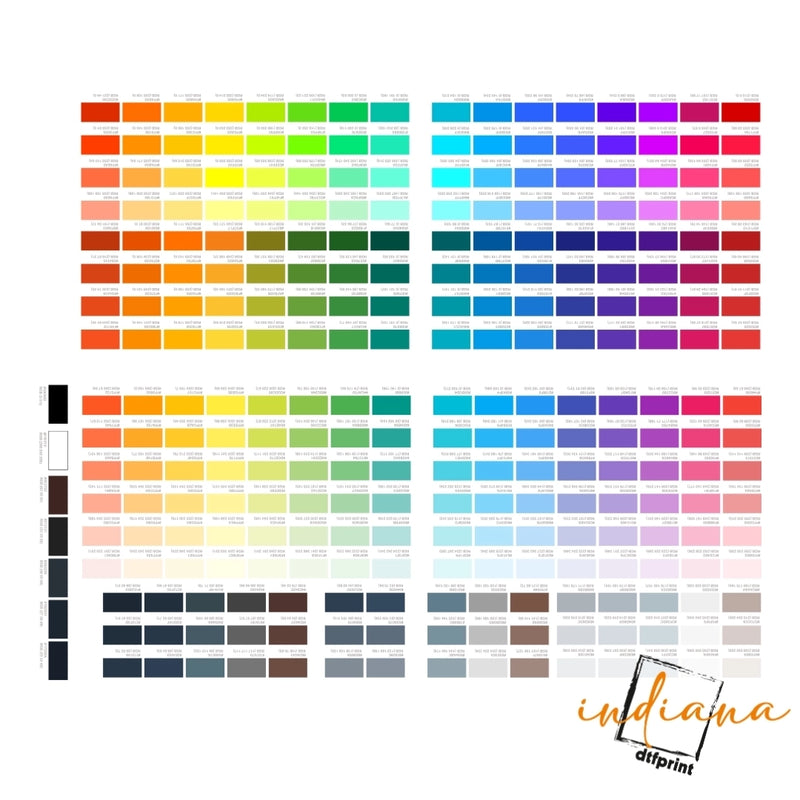
Color is another major factor in print quality. Using correct DTF color profile settings ensures that colors appear as expected after printing. Without proper profiles, colors may look dull or inaccurate. This is a key part of professional DTF design file specs.
Essential File Setup Tips
To meet all DTF transfer file requirements, follow these simple tips:
- Use PNG format with transparent background
- Set resolution to 300 DPI
- Maintain correct design size
- Avoid pixelated or stretched images
- Use proper color profiles
These steps ensure your files meet all DTF image quality requirements.
Common Mistakes That Ruin Print Quality
Even small errors can affect your final result.
Avoid These Mistakes
- Using low-resolution images
- Saving files in JPG instead of PNG
- Ignoring transparency
- Incorrect DPI settings
- Poor color management
Avoiding these mistakes helps you follow the correct DTF print resolution tips.
How to Check Your File Before Printing
Before sending your file to print, always double-check it. Zoom in to check for pixelation, confirm DPI settings, and ensure the background is transparent. This simple step ensures your file meets all DTF transfer file requirements.
Real Example for Better Understanding
Imagine printing a logo for a t-shirt. If your file is low resolution, the edges will look blurry. But with proper DTF png resolution and correct DPI, the same logo will appear sharp and clean. This shows how important proper file setup really is.
Building a Consistent Workflow
Consistency is key in DTF printing. Always follow the same process for file preparation. Use the same DPI, format, and color settings every time. This ensures your prints always meet professional DTF artwork dpi guide standards.
Conclusion
Perfect prints start with perfect files. By following the right format, DPI, and resolution, you can achieve sharp, vibrant, and professional results every time.
Take the time to prepare your files properly, it will save you time, money, and frustration.
If you’re looking for high-quality DTF solutions and reliable printing services, visit Indiana DTF Print.
FAQs
1. Can I use JPG files for DTF printing?
JPG files are not recommended because they do not support transparency and may reduce image quality. PNG files are better for maintaining sharpness and meeting DTF printing requirements.
2. What happens if my DPI is too low?
Low DPI results in blurry and pixelated prints. It reduces overall quality and makes designs look unprofessional, especially when printed on larger surfaces like t-shirts or hoodies.
3. Is 300 DPI always necessary for DTF printing?
Yes, 300 DPI is the standard for high-quality prints. It ensures sharp details and prevents pixelation, making it ideal for professional DTF printing results on all fabric types.
4. Can I increase DPI after designing?
Increasing DPI after designing does not improve quality. It only stretches the image, which can lead to pixelation. Always create your design at the correct DPI from the start.
5. Do I need transparent backgrounds for all designs?
Yes, transparent backgrounds are important for clean prints. They ensure only the design is transferred onto the fabric without unwanted background areas affecting the final output.
6. Are vector files better than PNG for DTF?
Vector files are useful for design creation, but PNG is preferred for printing. Exporting vectors as high-resolution PNG files ensures compatibility and maintains print quality.
7. How do I check if my file meets requirements?
You can check resolution, DPI, and transparency in your design software. Zooming in helps identify pixelation and ensures your file meets all necessary DTF printing standards.
8. Does file size affect print quality?
File size itself does not determine quality, but larger files usually contain more detail. Proper resolution and DPI settings are more important for achieving high-quality prints.
9. Can wrong color settings affect results?
Yes, incorrect color profiles can cause colors to appear dull or inaccurate. Using proper color settings ensures your design prints with the intended brightness and accuracy.
10. Should I resize my design before printing?
Yes, always resize your design to the final print size before printing. This ensures correct resolution and prevents distortion or loss of quality during the printing process.


